Views
Choose the perfect view for how you work. TimeCamp offers multiple ways to visualize and interact with your time tracking data.
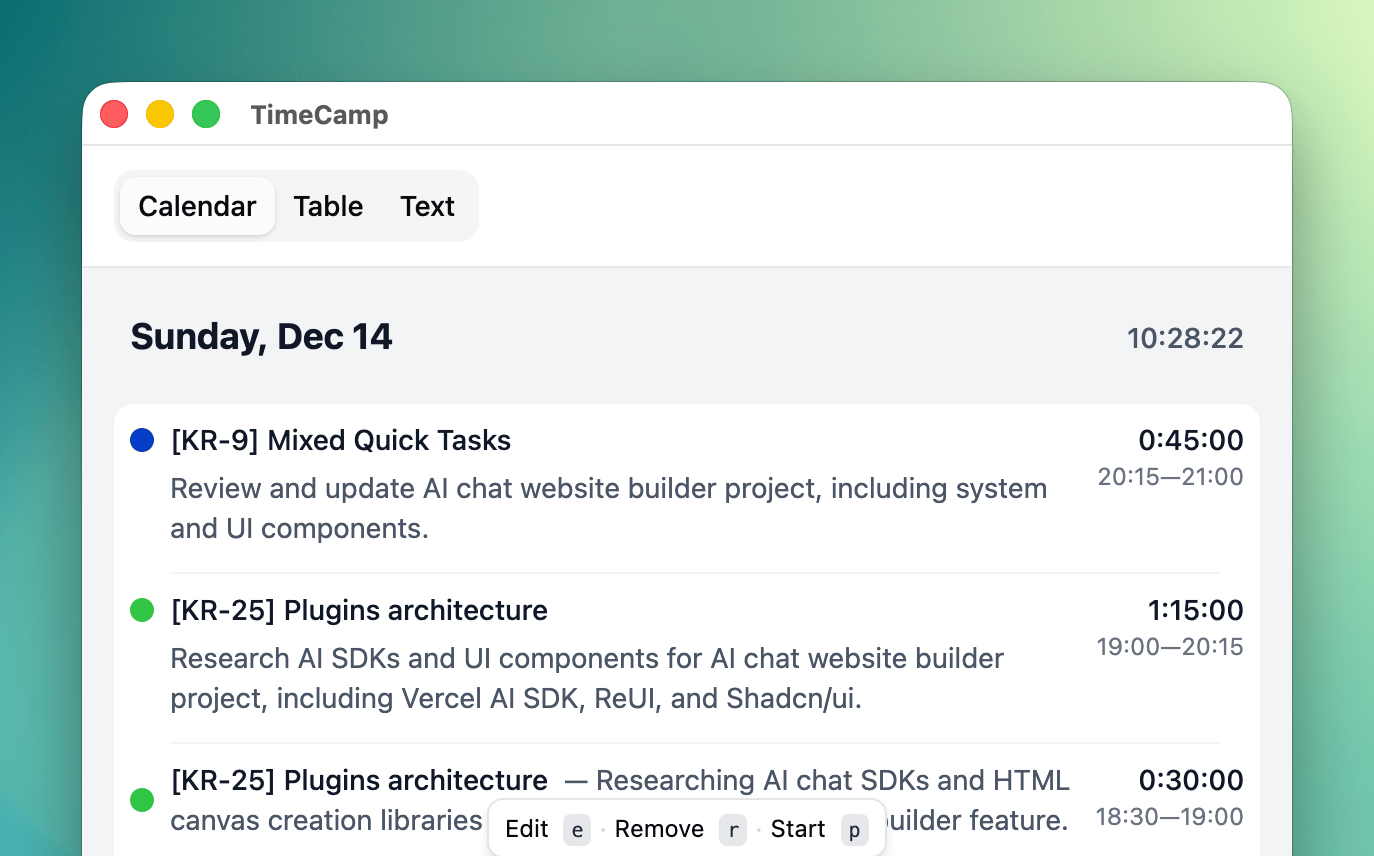
Calendar
See your time unfold across days, weeks, and months in a beautifully intuitive calendar view. Effortlessly spot patterns, identify your most productive periods, and understand how your time flows throughout each month—all at a glance.
- Click
Open...in the menubar icon to open - Optionally click on app icon
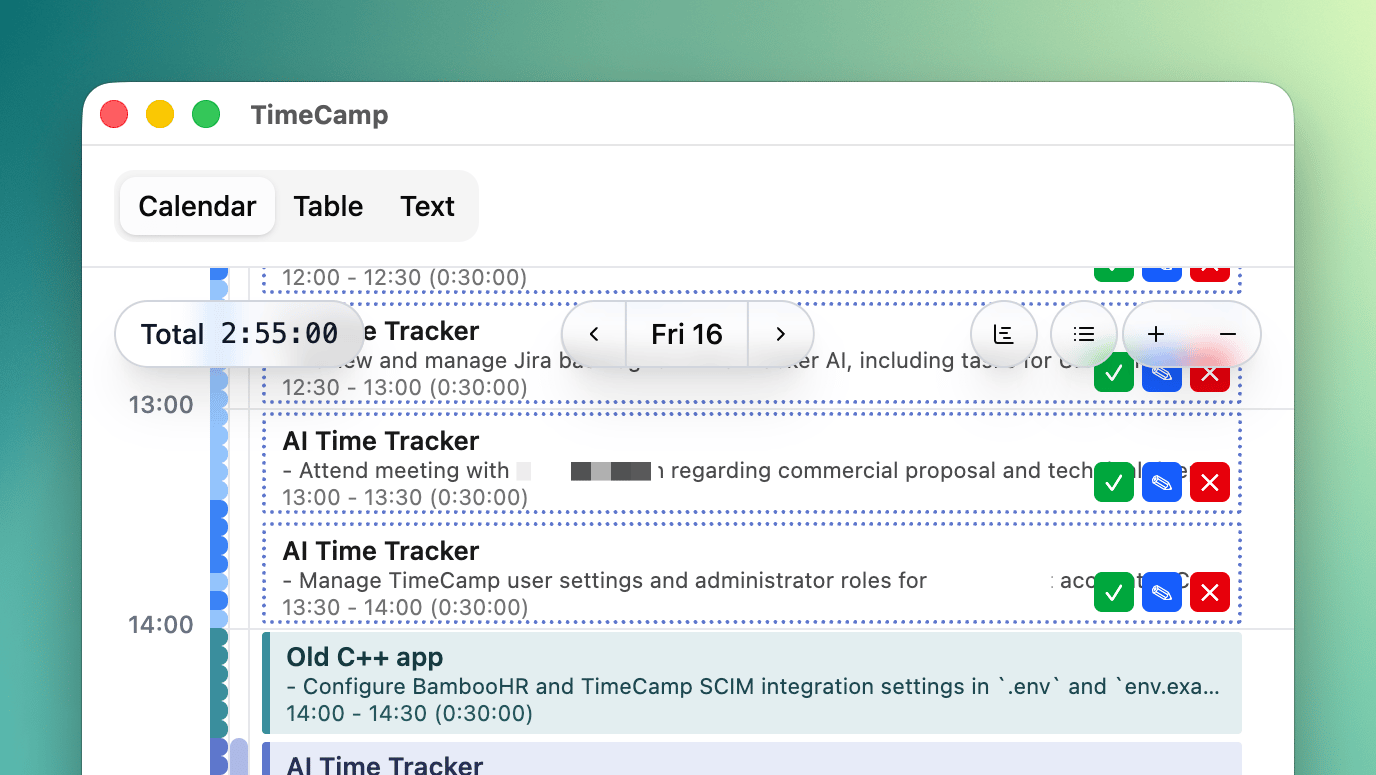
List
Your activities flow in a clean, chronological list that makes every moment easy to scan and understand. Edit entries instantly, review your day's work effortlessly, and stay organized without ever feeling overwhelmed.
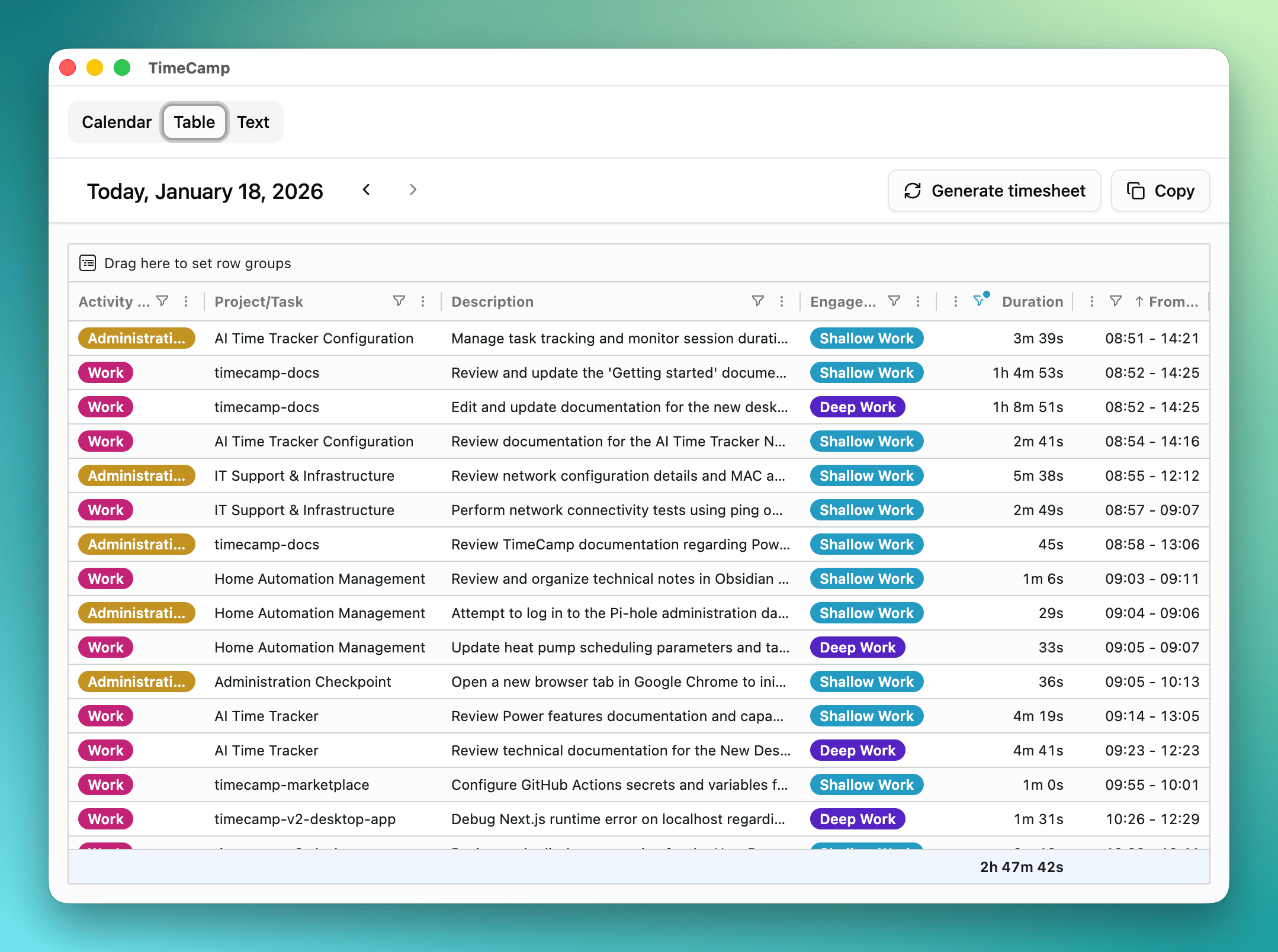
Table
Powerful data organization meets elegant simplicity in a structured table that lets you sort, filter, and analyze your time with precision. Transform raw tracking data into meaningful insights with just a few clicks.
Text
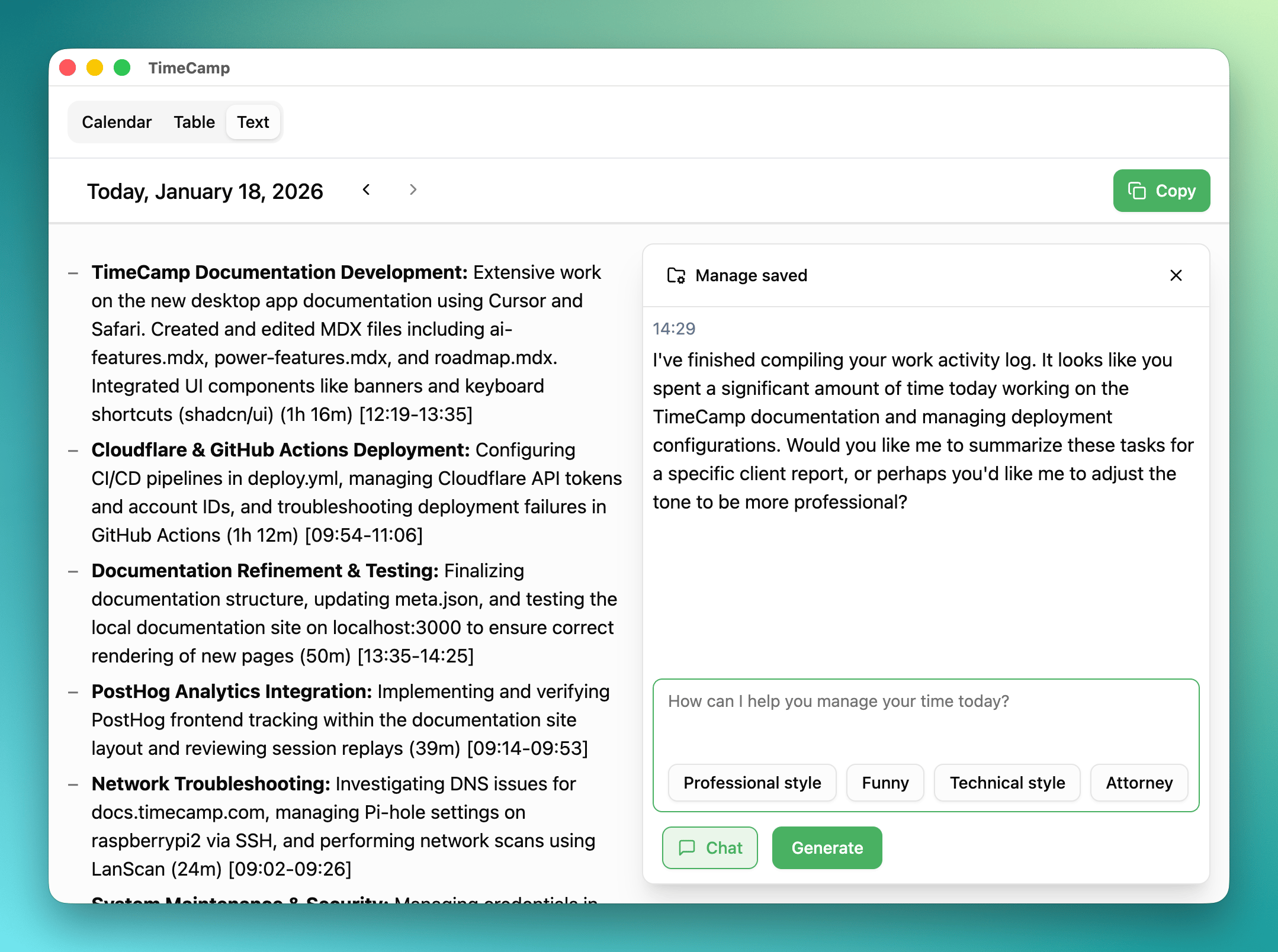
Sometimes the simplest view is the most powerful. Plain text gives you complete control, letting you edit entries naturally and work with your data exactly how you think—no interface getting in your way.
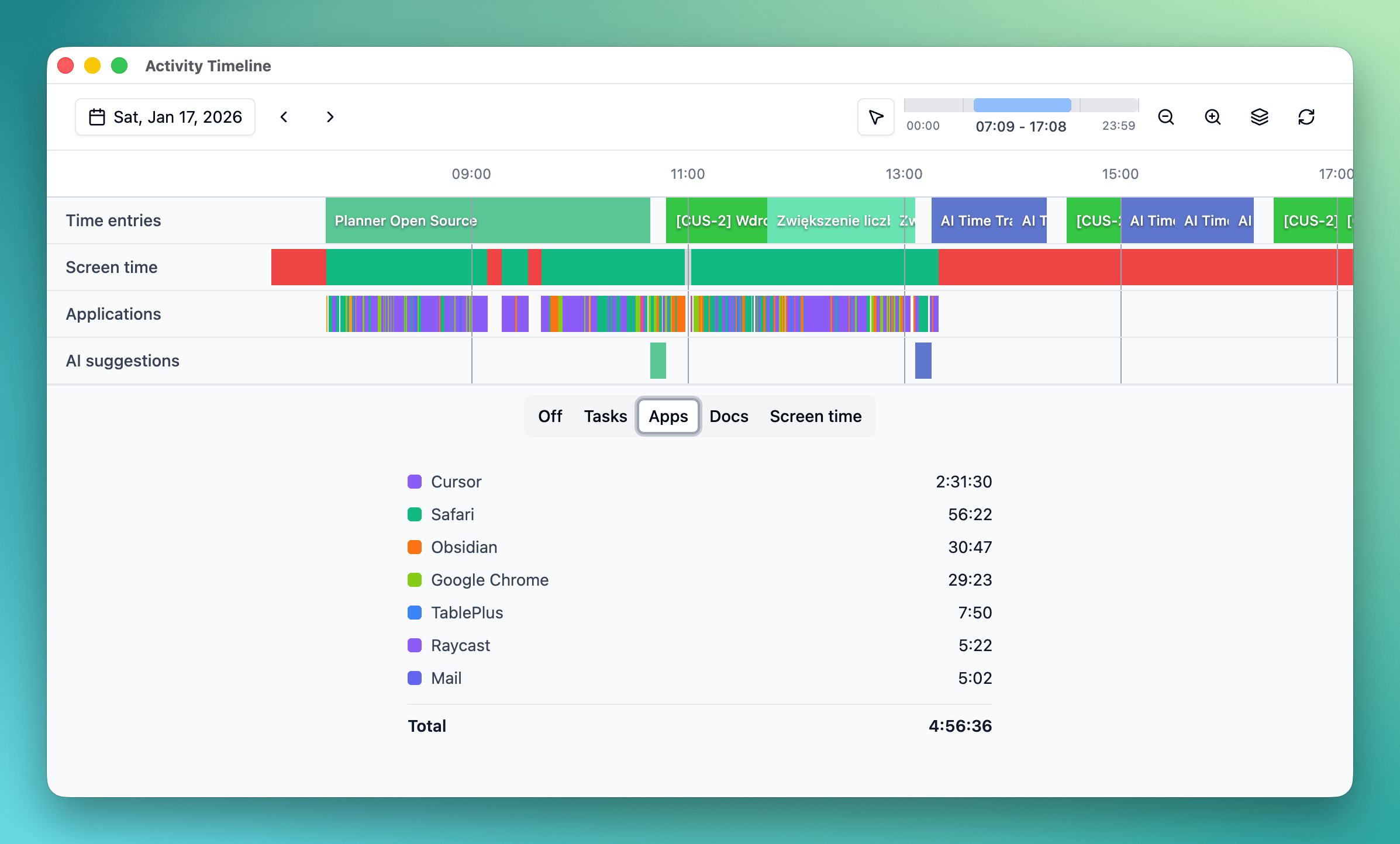
Timeline
Watch your day unfold visually as activities flow seamlessly across a horizontal timeline. Instantly see where your time goes, spot gaps, and understand the rhythm of your workday in one beautiful, continuous view.
- Click
Open Timeline...in the menubar to open - Optionally click on timeline icon in
Calendar view
Widget
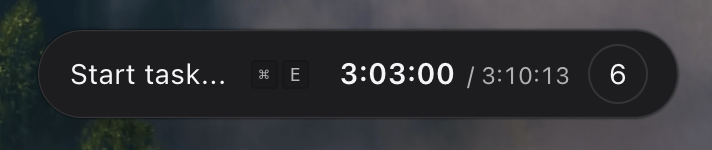
Your time tracking, always within reach. A compact, elegant widget sits quietly in your workspace, showing exactly what you need to know without demanding attention. It's there when you need it, invisible when you don't.
- Right click on the app icon in the menu bar
- Select
Show Widget
Quick Start Task
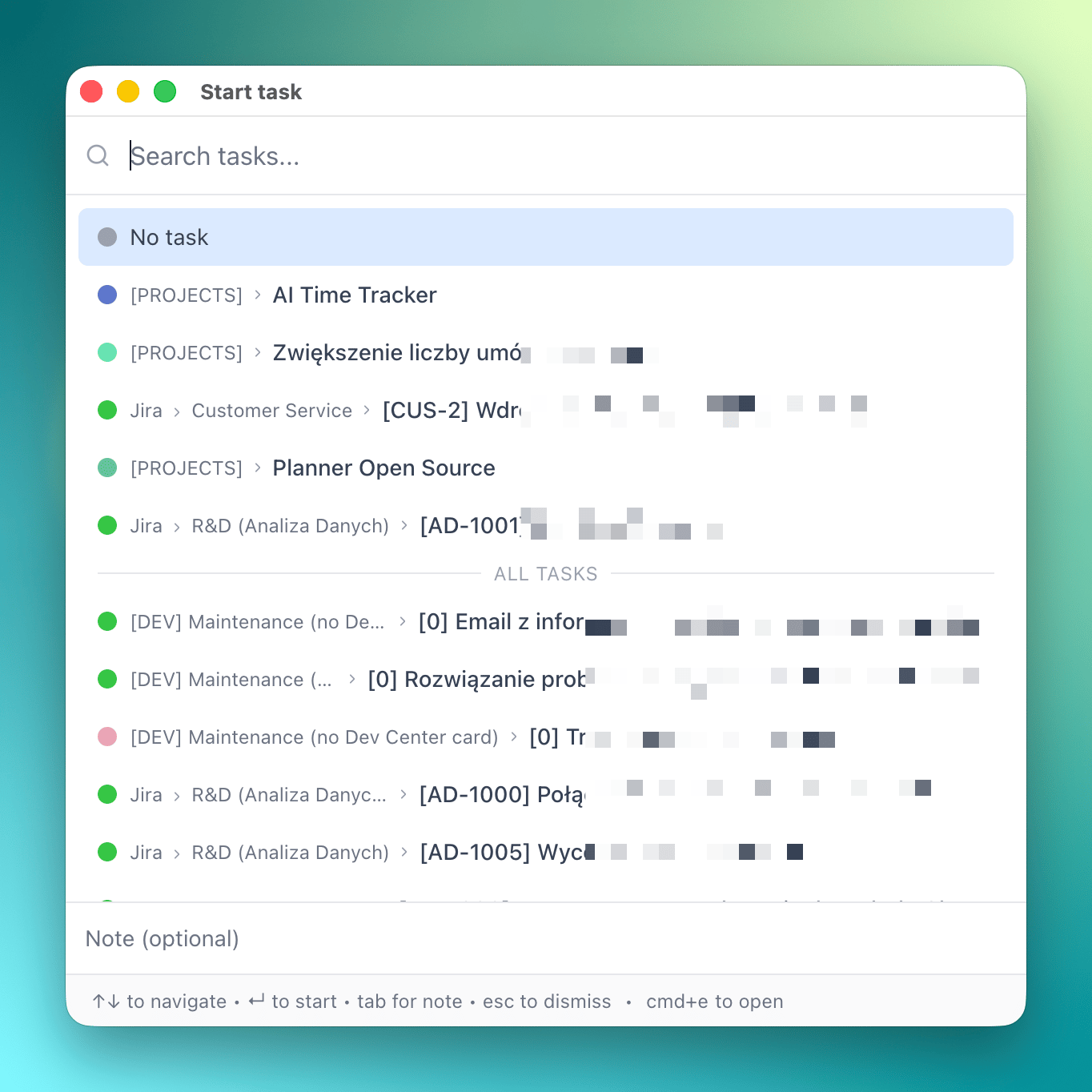
Start tracking instantly from anywhere with a spotlight-like launcher. Press Cmd+E (Mac) or Ctrl+E (Windows/Linux) to summon a powerful quick-start interface that lets you begin timing any task without breaking your flow.
- Click Cmd/Ctrl+E to open
- Select task and start tracking
- Optionally before selecting a task write a note
Tip: You can also access Quick Start in menubar, calendar view and timeline view.
You can also change default shortcut in Settings by clicking on Settings... in the menubar and then gear icon ⚙️ for Calendar and then Keyboard Shortcuts.
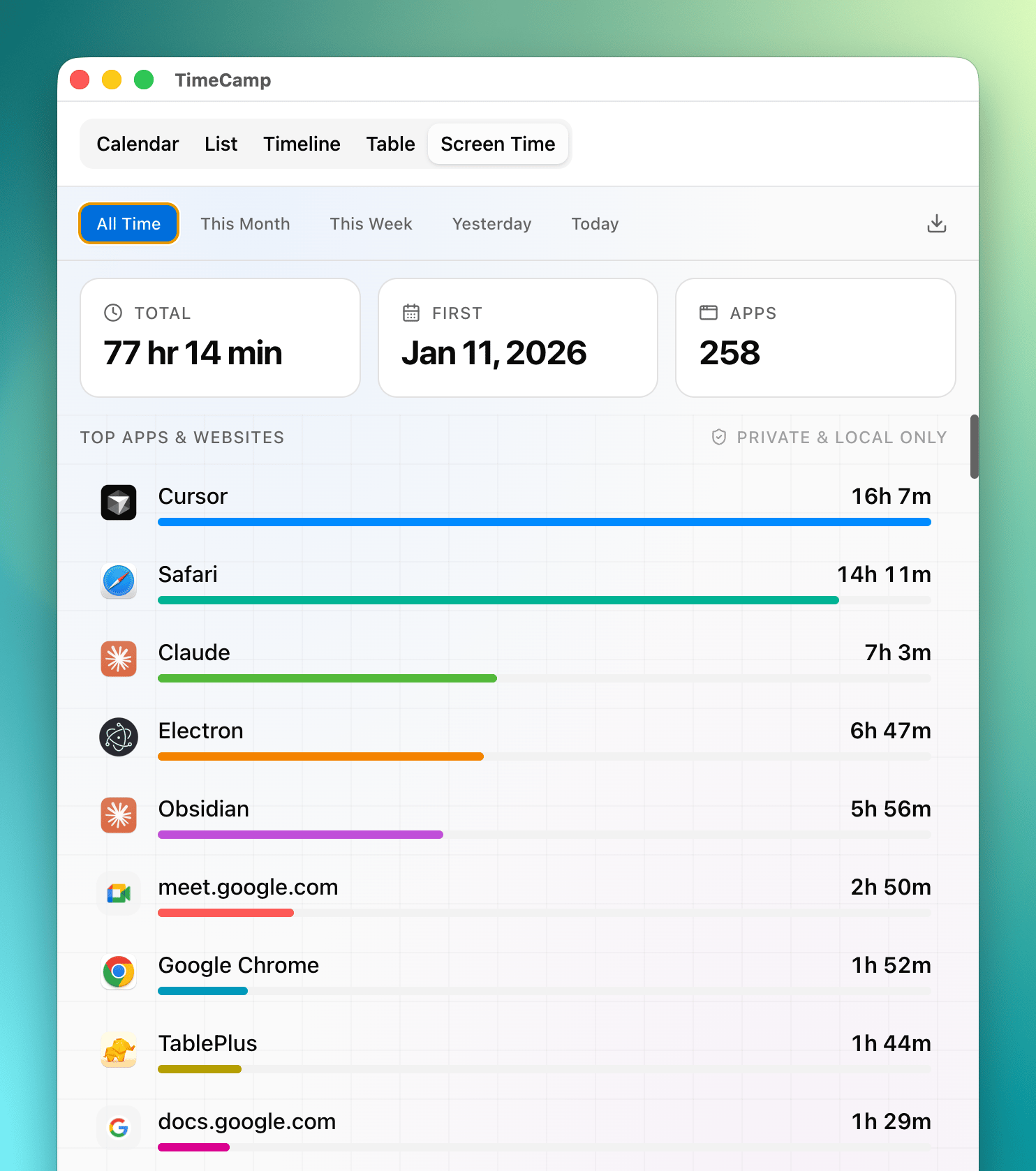
Screen Time
See exactly how much time you spend in each application and website. The Screen Time plugin gives you a clear breakdown of your digital habits, complete with favicons for easy recognition, helping you understand where your attention goes throughout the day.