
AI Desktop App
Getting started
The world's #1 time tracking agent app.
Desktop app uses AI to passively track time. Beautiful, instant, and private timesheeting on your own device.
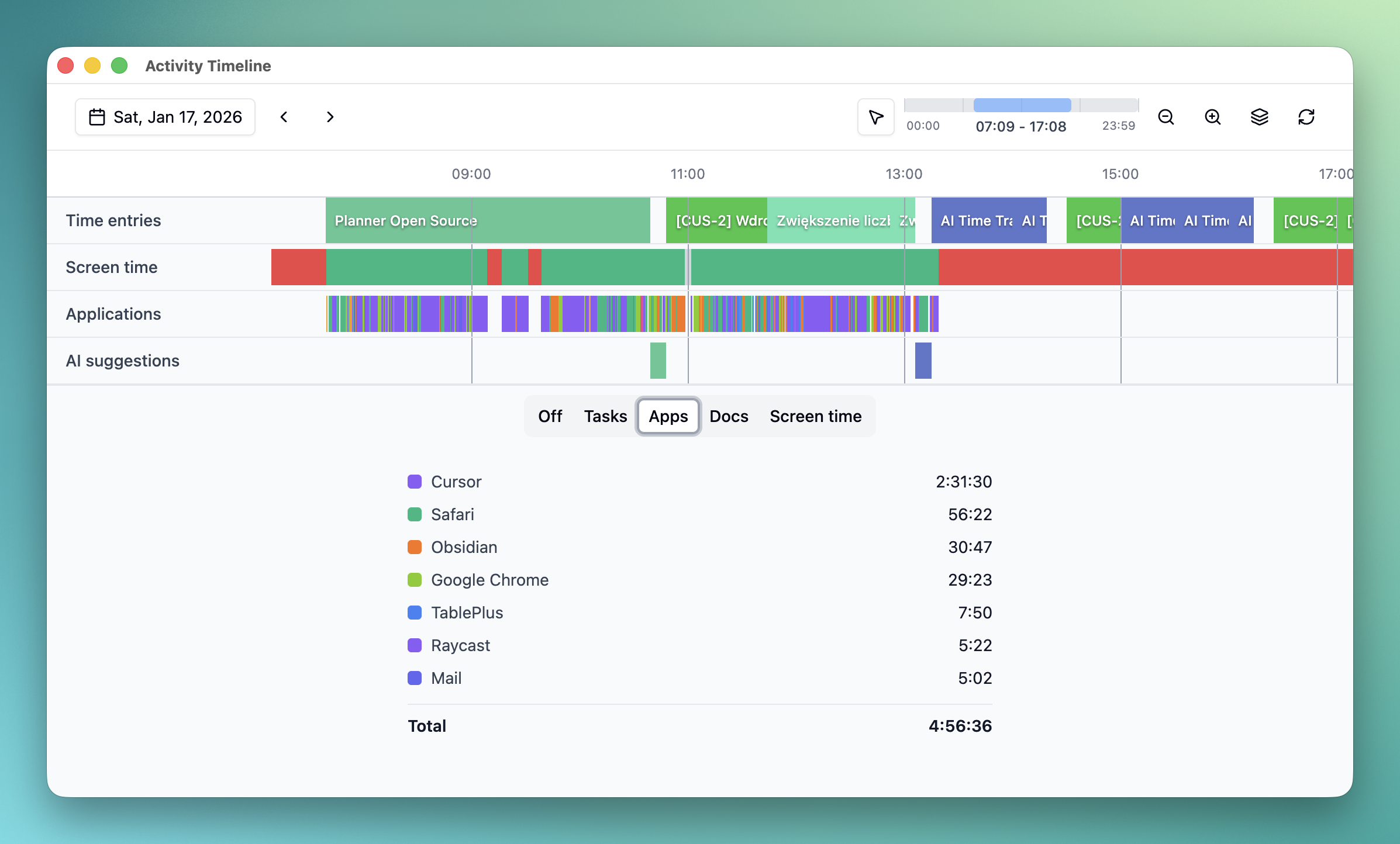
Install & Launch
- Download and install TimeCamp Desktop Time Tracker
- Launch the application
- On MacOS, grant two permissions when prompted:
- Accessibility (tracks apps/windows)
- Screen Recording (for OCR features - optional)
Connect TimeCamp
- Get API token from TimeCamp → Profile Settings → API Token
- Enter token in TimeCamp Timesheet plugin
- Done! Your entries will sync automatically
Start Tracking
- The app tracks automatically in the background
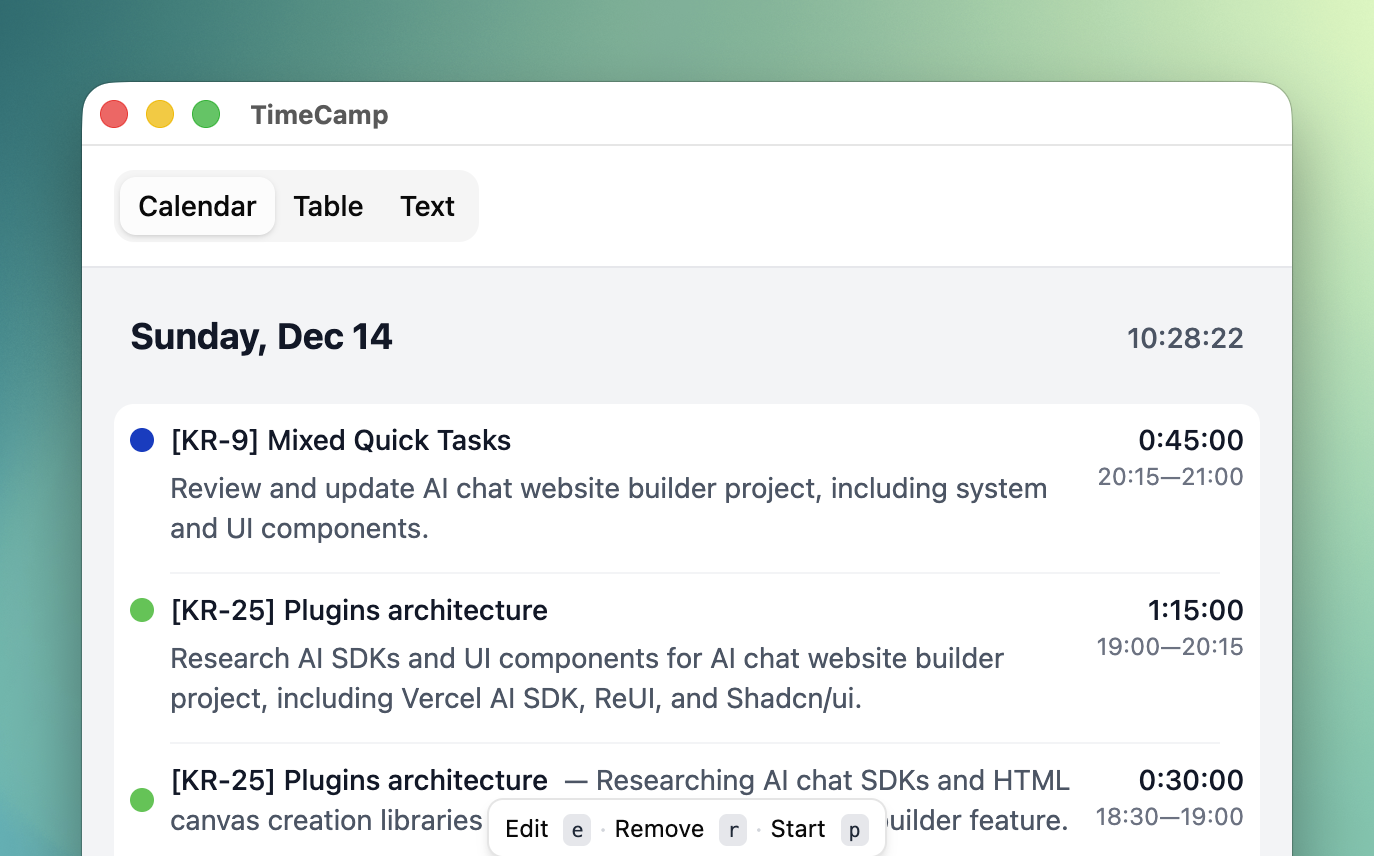
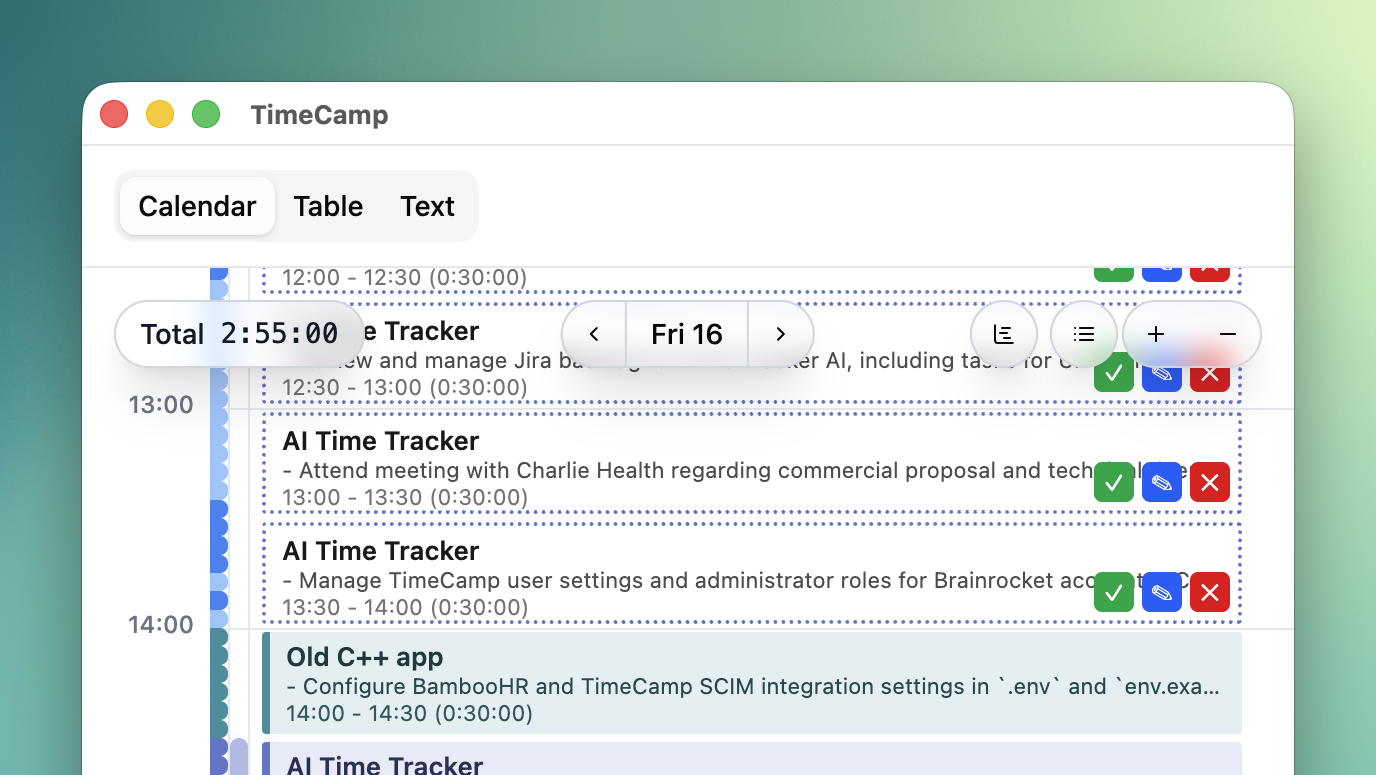
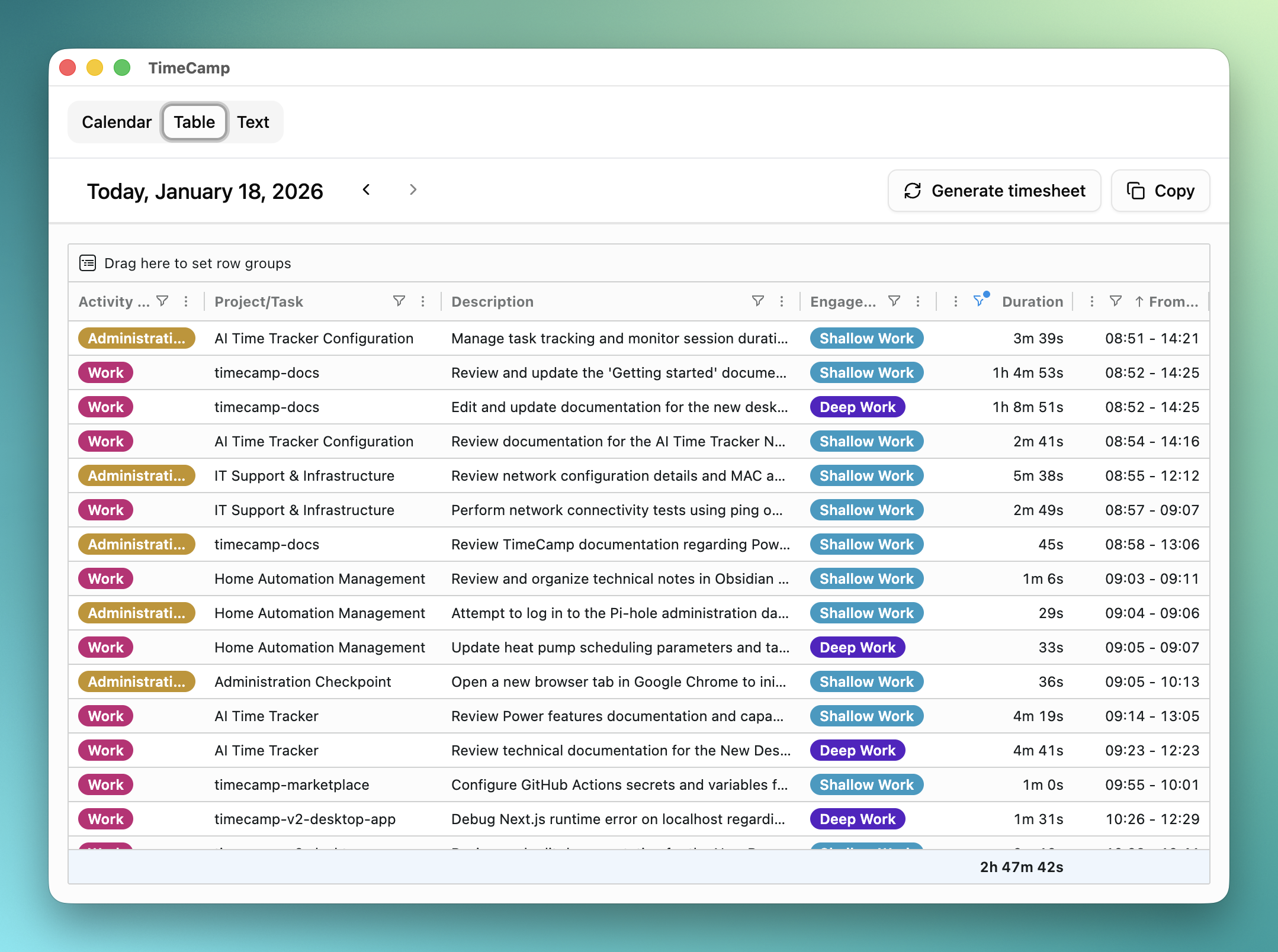
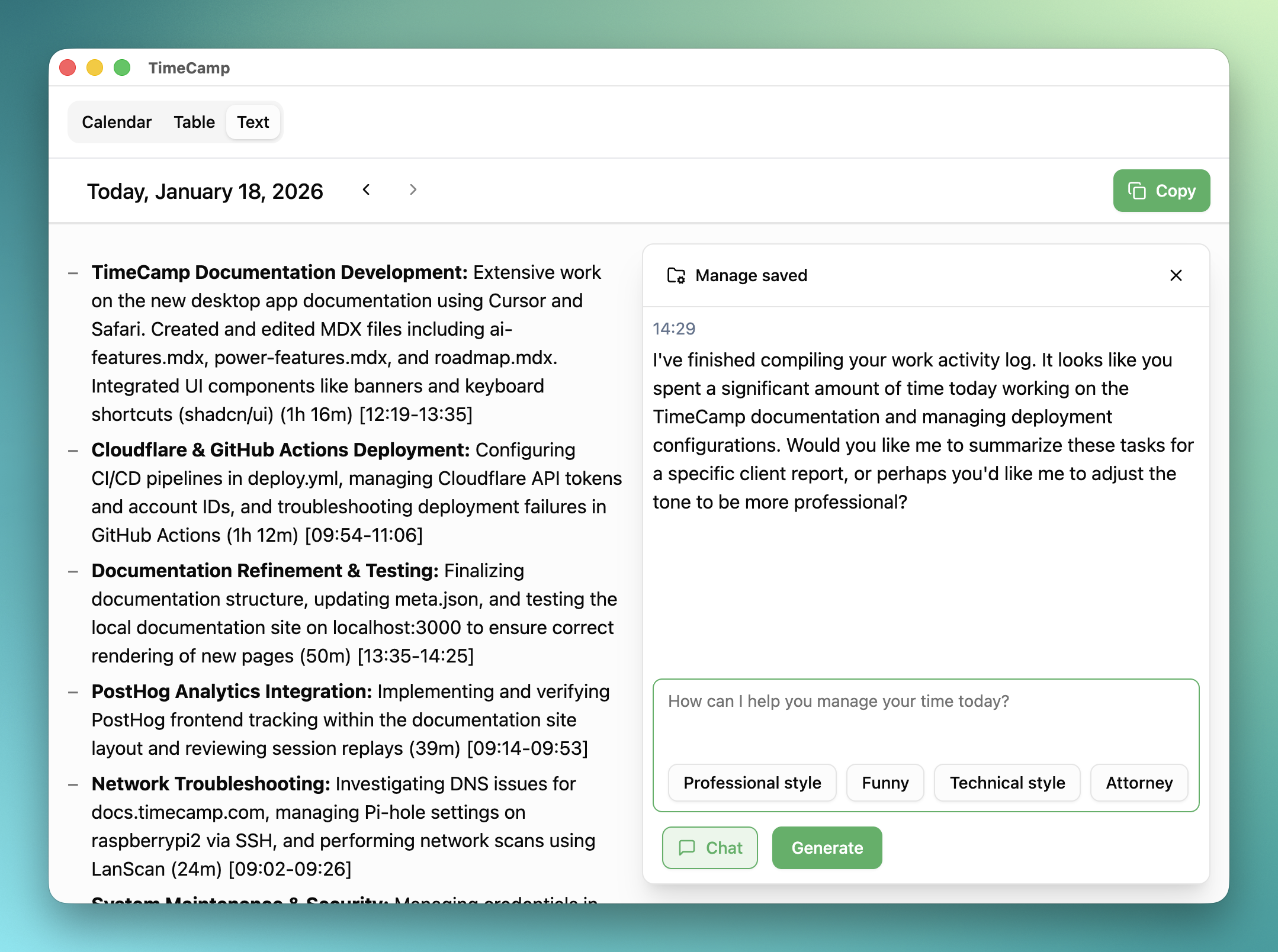
- Use Calendar, Table, Text, List views to see your tracked time
Main Features
Automatic Tracking
- Tracks all applications you use
- Monitors active time
- Works in background automatically
TimeCamp Integration
- Sync entries to TimeCamp
- Pull tasks/projects
- Real-time updates
Smart Features
- Overlap/gap detection
- Compact mode (tiny window)
- Keyboard-first workflow
How to Update
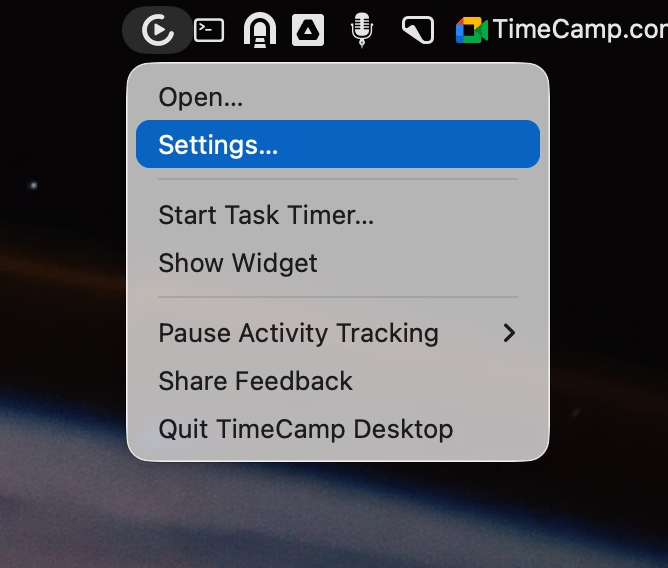
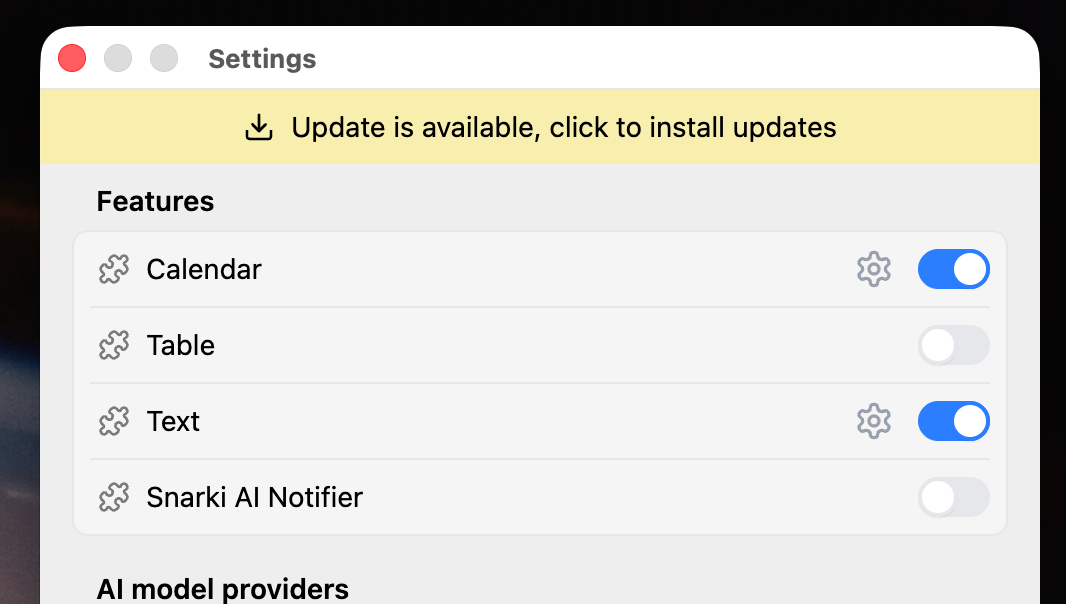
Click Update
In the Settings window, click the Update button.
If you don't see the new version banner, restart the application.
Wait for the Update
The app will download and install the update automatically.
How to Find Logs
If you need to share logs for troubleshooting:
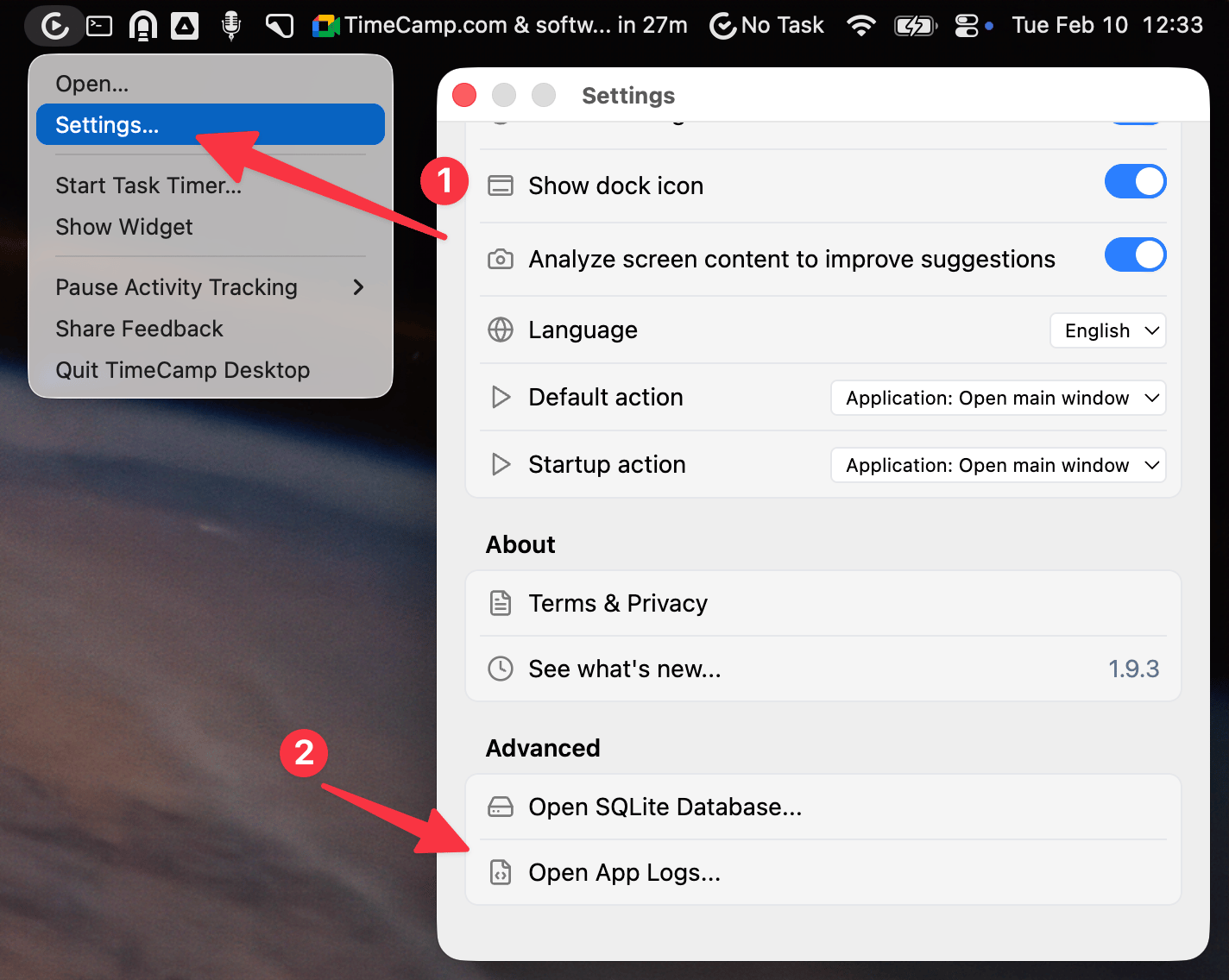
- Open menubar menu and go to Settings.
- Scroll down and click Open App Logs....
- Open selected file or send it to us at support@timecamp.com.
How to update TimeCamp API Token
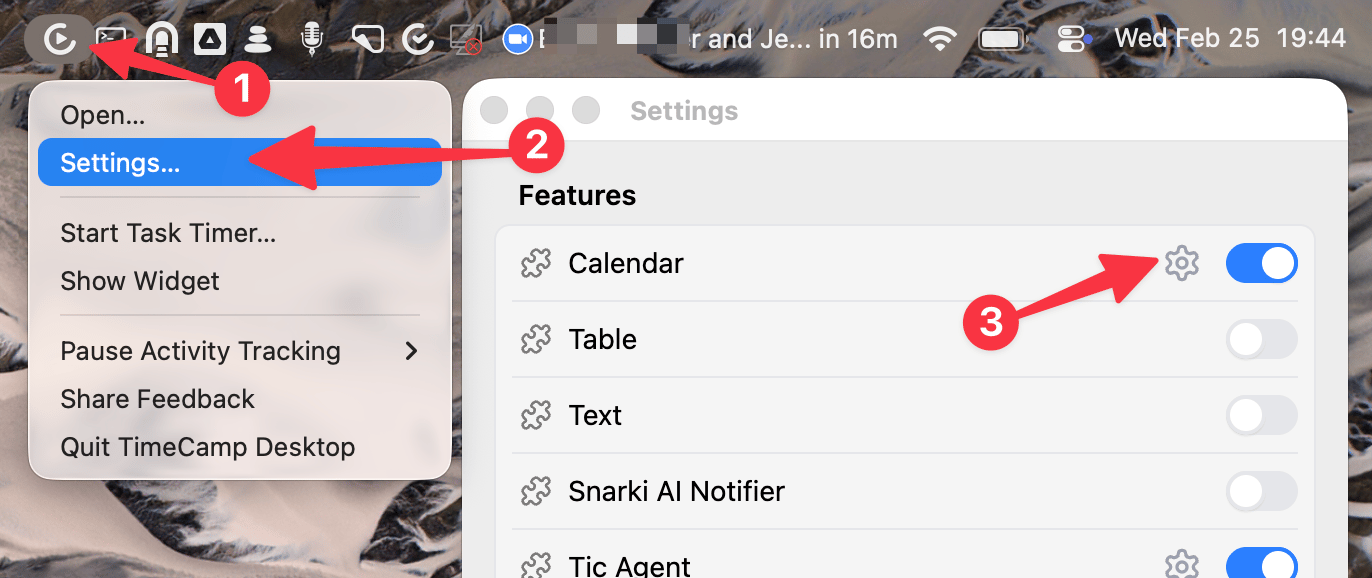
- Left click on menubar icon and open Settings. On Windows click arrow near clock, then find Desktop Time Tracker icon, then click Settings.
- Click on Calendar gear icon.
- Paste new API token and click Back to settings.
Troubleshooting
| Problem | Solution |
|---|---|
| Not tracking | Check both permissions in System Settings |
| AI not working | Check daily limit; wait until tomorrow |
| Sync issues | Verify API token; check internet |
| High CPU usage | Disable OCR if not needed |
Published Date: December 09, 2025