
MCP Server
The TimeCamp MCP (Model Context Protocol) server allows AI assistants to interact with your TimeCamp data directly. You can start, stop, and manage time entries, browse projects and tasks, and more — all through natural language conversations with your favorite AI tool.
MCP is an open standard that enables AI models to securely connect to external data sources and tools. Learn more at modelcontextprotocol.io.
Server URL
https://mcp.timecamp.com/mcpWhat you can do
With the TimeCamp MCP server, your AI assistant can:
- Start and stop time tracking
- Create and manage time entries
- Browse projects and tasks
- View tracked time summaries
- Manage your TimeCamp workspace (manage tasks, tags)
- Generate reports & analysis
Setup
Claude Desktop
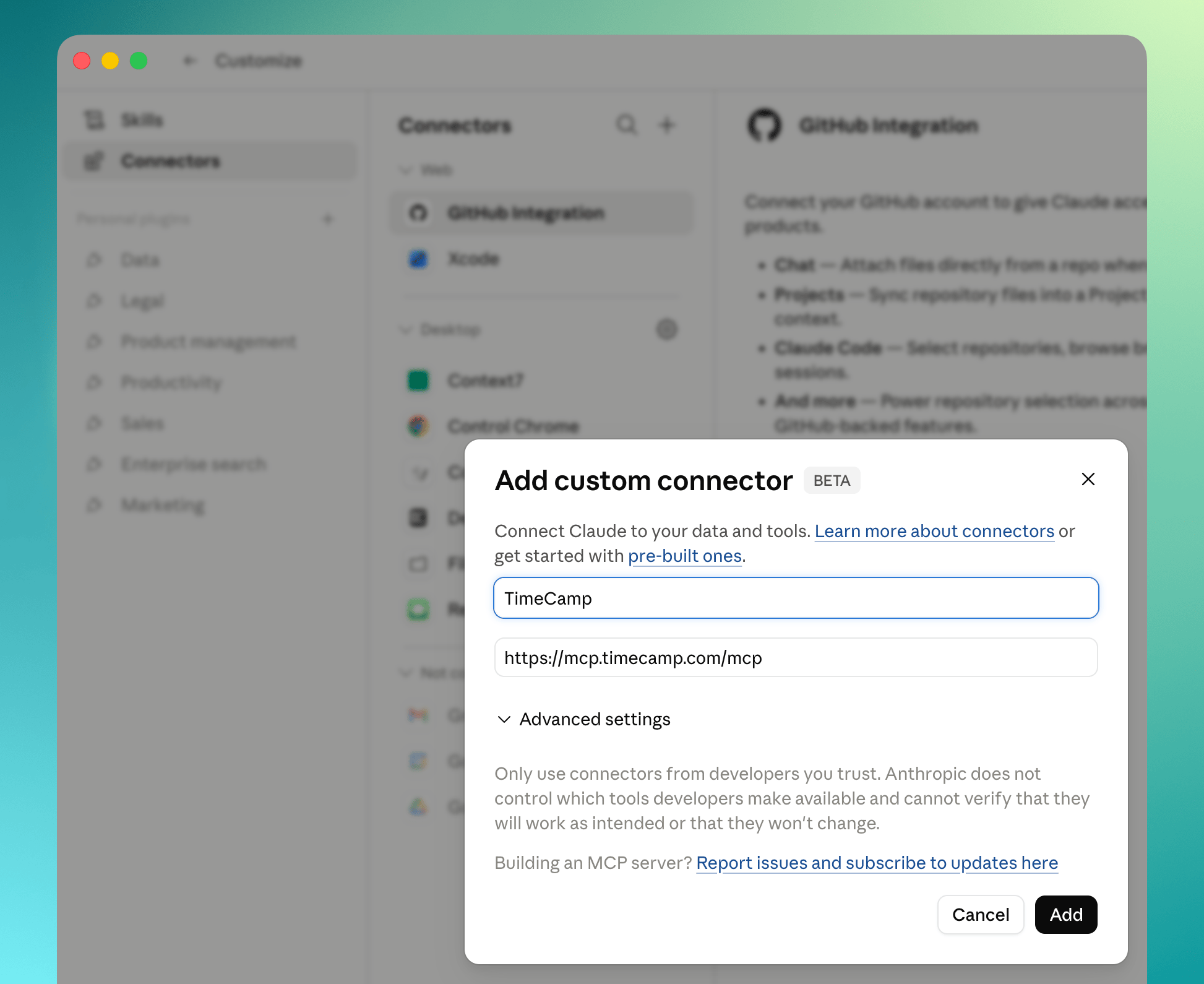
- Open Claude Desktop and go to Settings → Connectors → Customize
- Click the + icon → Add custom connector
- Enter the following URL:
https://mcp.timecamp.com/mcp- Click Save
- Claude will prompt you to authenticate with your TimeCamp account
Claude Code (CLI)
Add the server using the CLI:
claude mcp add timecamp https://mcp.timecamp.com/mcpChatGPT
- Open chatgpt.com and go to Settings → Connected apps
- Click Add connection
- Search for "TimeCamp" or enter the server URL manually:
https://mcp.timecamp.com/mcp- Click Connect and authenticate with your TimeCamp account
- TimeCamp tools will now be available in your ChatGPT conversations
Cursor IDE
Add the TimeCamp MCP server to your Cursor configuration:
- Open Cursor Settings → MCP
- Click Add new MCP server
- Choose Type: URL and enter:
https://mcp.timecamp.com/mcpAlternatively, add it directly to your .cursor/mcp.json file:
{
  "mcpServers": {
    "timecamp": {
      "url": "https://mcp.timecamp.com/mcp"
    }
  }
}- Restart Cursor or reload the MCP servers
- You'll be prompted to authenticate with your TimeCamp account
Any MCP-compatible client
Server URL:
https://mcp.timecamp.com/mcpConfiguration examples
JSON configuration (commonly used by MCP clients):
{
  "mcpServers": {
    "timecamp": {
      "url": "https://mcp.timecamp.com/mcp"
    }
  }
}
Windsurf:
Add to your Windsurf MCP settings with the URL https://mcp.timecamp.com/mcp.
VS Code (Copilot):
Add to your .vscode/mcp.json:
{
  "servers": {
    "timecamp": {
      "url": "https://mcp.timecamp.com/mcp"
    }
  }
}
Authentication is handled via OAuth. When you first connect, your AI client will redirect you to TimeCamp to authorize access.