
AI Desktop App
Power features
Pro tip: Master keyboard shortcuts first—they provide the immediate productivity boost.
Keyboard Shortcuts
- ⌘E/CtrlE- Start new timer (global shortcut)
- E - Edit hovered entry
- R - Remove hovered entry or delete in edit dialog
- N - Start a new empty timer
- S - Stop the current timer
- T - Add new entry for Today (hover Today's header or anywhere in window)
- Enter - Save changes
- ShiftEnter- Add new line in notes field
Workflow Enhancements
- Change to more powerful AI models by adding your own OpenRouter API key in Settings.
- In Text view, you can save your propmpts to memory, so they will be applied automatically next time.
- Improve AI suggestions by providing your own examples and prompts in Settings. Make it yours, make it personal. Iterate.
I mostly work on projects XYZ, ABC, and DEF. Try to match those.
Time entries descriptions should sound professional and concise. Should be in Spanish.
Don't add activities to descriptions, only general task descriptions.
Example of good description: "Reviewed and updated project XYZ documentation".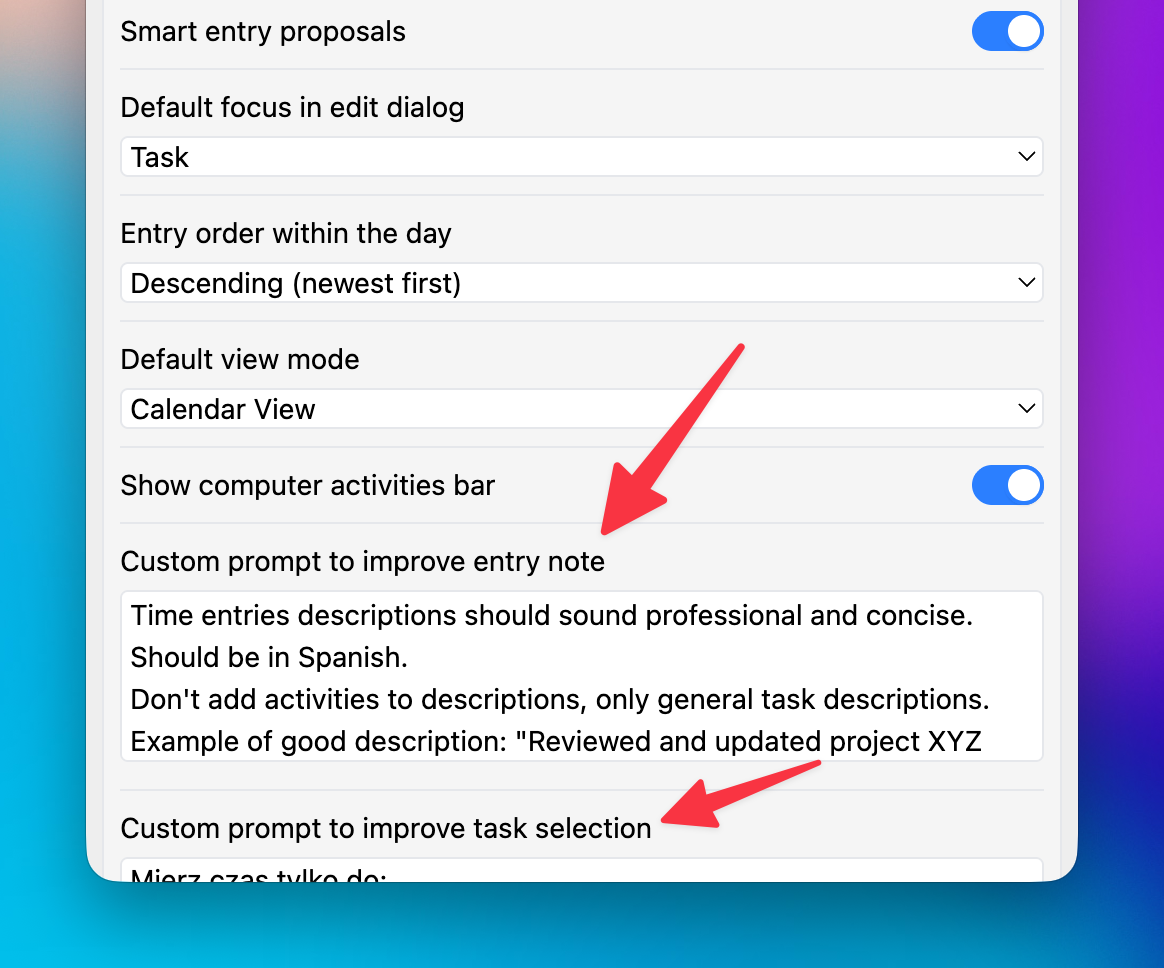
Data
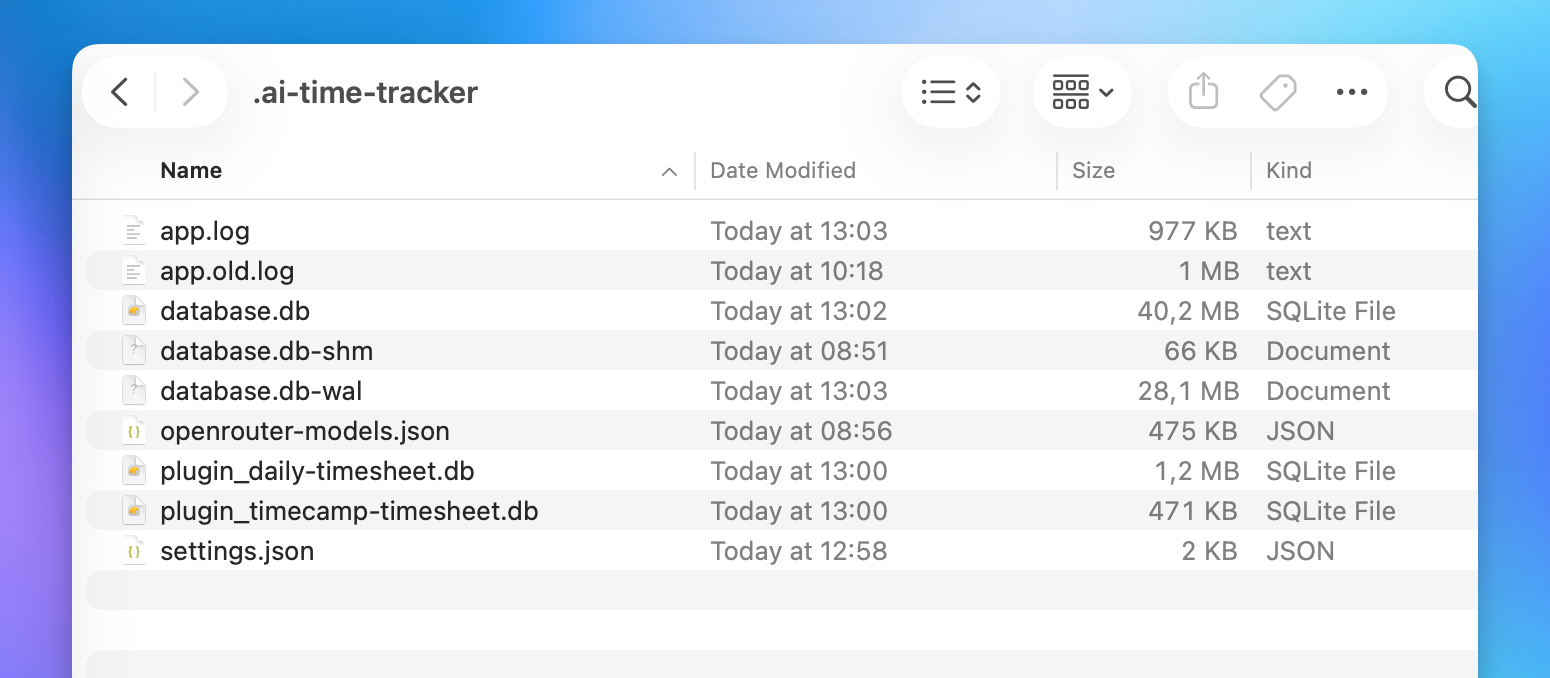
- Access your raw data by openning Settings and clicking on "Open Database".
- Use SQLite database for custom analysis in Jupyter notebooks, DuckDB, or BI tools.
- Make regular backups - it's just a SQLite database files.
Read how TimeCamp CEO tracked his time with raw data in this article for inspiration.
Published Date: December 09, 2025